
Data decisioning with Looker
Connect Looker with Transcend for consent management, data subject requests, and real-time data governance.


Transcend allows you to programmatically access data in the form of Looker queries (e.g. Looks) in the Looker platform in accordance with data privacy regulations like GDPR and CCPA.
Setting up the Looker integration
To get started, make sure you're logged in to Transcend. If not, log in to Transcend. To configure the Looker integration, you'll want to:
- Navigate to Integrations > Add integration > Looker.
- To connect the Looker integration, you'll need your subdomain, port, Client Secret and Client ID. To retrieve these, follow the below steps:
- If your Looker instance is self-hosted, you must provide your domain and (if configured with one) port. If you host a Looker instance at lookerinstance.companyName.com:9090, for instance, your domain is companyName.com:9090.
- If you do not self-host Looker, leave the default value. The subdomain can be retrieved by logging into your Looker account and inspecting the portion of the url after "https://", and before ".looker.com" (or before your own domain for self-hosted integrations - in the step above, the subdomain is lookerInstance).
- The Client Secret and Client ID can be retrieved from the users section of the admin dashboard, as described in the following article under the "API3 Keys" section.
- In Looker, create a folder named "Transcend DSR Automation" containing only the queries to be run for data subject requests. Your dedicated Transcend user should have access to only this folder. This security practice ensures that Transcend can only access looks and queries necessary to fulfill data subject requests. For tips on how to manage access to content in Looker, please see this article.
- To filter a query response for the data subject's email, populate the relevant columns with the following template: {{endUserEmail}}. Here is an example of valid JSON for a query: "filters": { "model.user_email_property_of_your_choosing": "{{endUserEmail}}" }.
- Once connected, navigate to the Privacy Center tab. You'll need to map the data in Looker to your Data Practices.
- To do this, create a new Category as well as a new Data Collection with the appropriate naming convention (e.g. "User Profile").
- When you're done, hit publish.
- Navigate back to your Data Inventory and click into the Looker data silo.
- Expand "Manage Datapoints" and select the Collection Label (Category) you created in the previous step from the dropdown. You can also choose which data actions (e.g. access) are enabled for which datapoints.
- Next, while still in the Looker data silo, expand "Manage Identifiers".
- Check the respective boxes for which identifiers you'd like enabled. As an example, if you'd like Transcend to search users by email address, you'd check the box to enable the Email Address identifier. Note: if identifiers are not enabled correctly, we may not be able to process requests for certain users.
Testing
We recommend testing requests across your Data Map before you start processing requests from end-users. To do this:
- Go to Privacy Center and click "View your Privacy Center".
- From your Privacy Center, click Take Control, then Download my data. You'll need to enter your email or login to authenticate yourself before submitting the request.
- Check your email for a message from Transcend. You'll be asked to click on a verification link to verify the request. Confirm your download request.
- Next, back in the Admin Dashboard, navigate to the Incoming Requests tab and select your request. If you don't see the request here, contact us at support@transcend.io.
- Once you've clicked into your request, navigate to the Data Silos tab and select Looker. Inspect the data returned.
- Finally, navigate to the Report tab and click Approve and Send. You should receive the report at the email address you submitted with the request.
Want to learn more about the benefits of using Transcend and Looker together? Read more on the Looker website.
Transcend seamlessly unifies fragmented data permissions across all your systems
Share your priority systems and data permissioning needs, and our team will follow up directly with a demo and action plan specific to your business.
Automate data governance across your systems
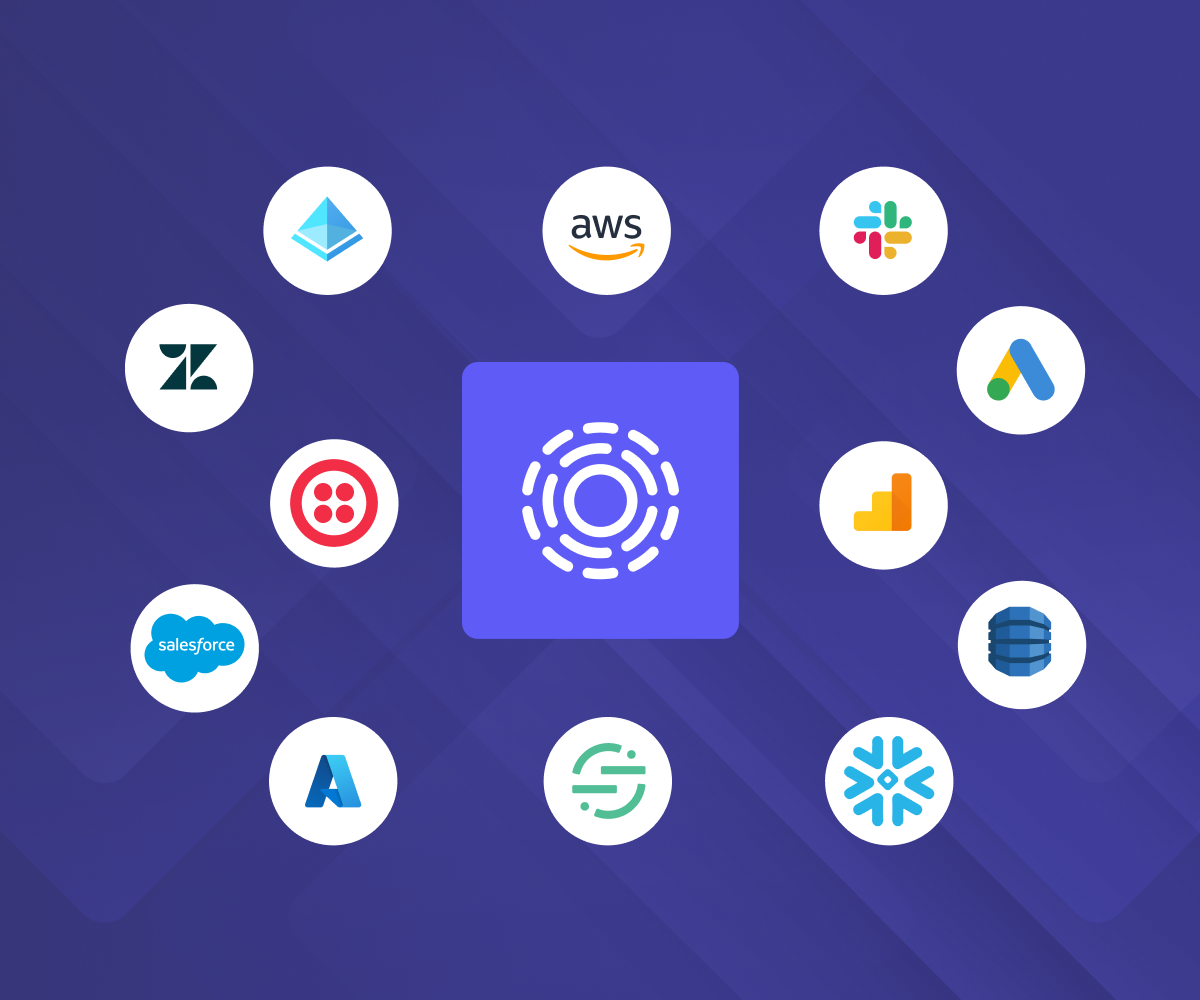
The broadest, deepest integrations
Manage data decisions across every system, including SaaS tools, data stores, warehouses, set up in a few clicks. One integration handles identity mapping, DSRs, discovery, and preference updates, instead of stitching together point solutions for each.
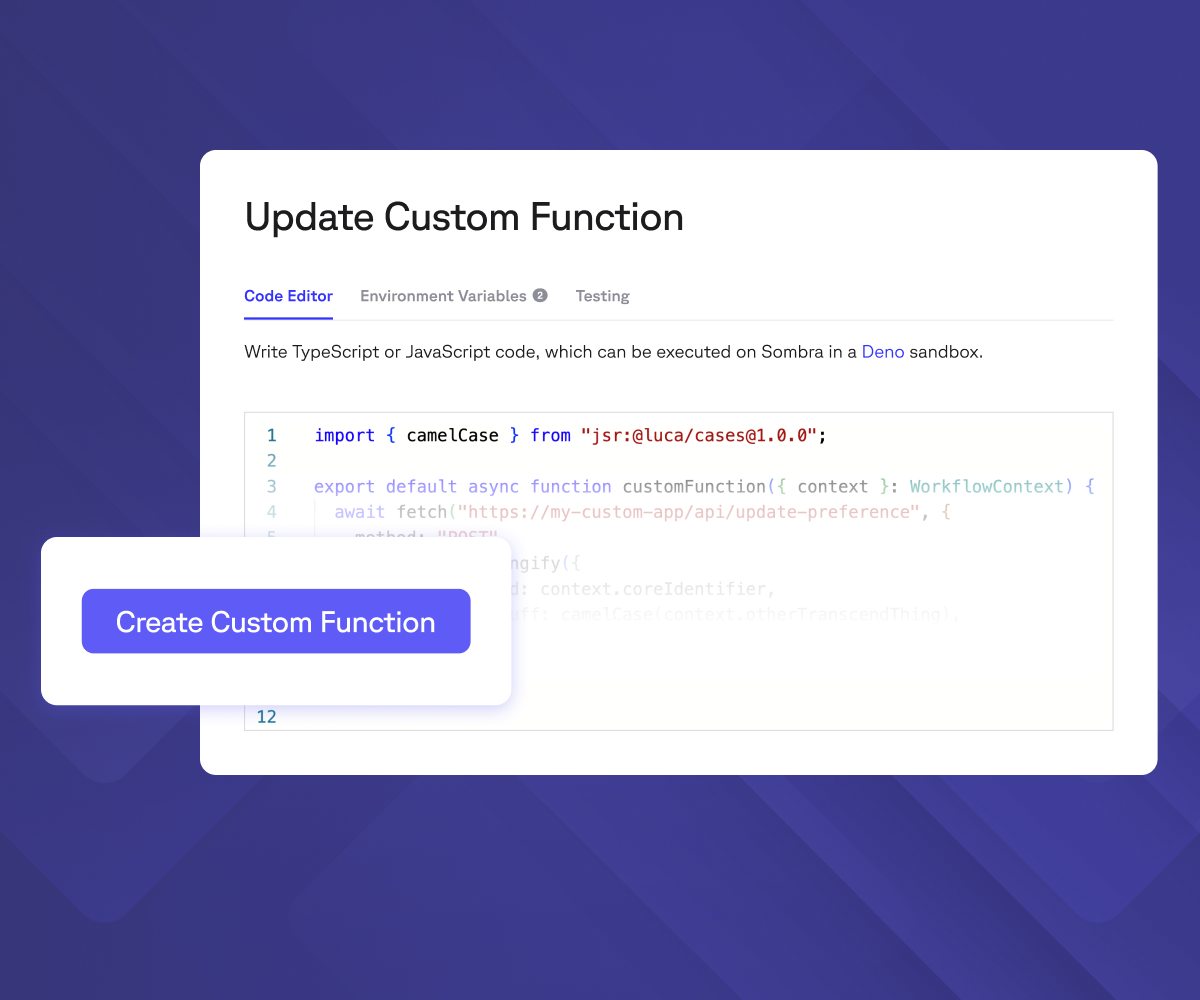
Unmatched extensibility
Homegrown system? Custom Functions let your engineering team write code once and plug it directly into Transcend's automation with no extra servers and zero infrastructure to maintain.
Read docs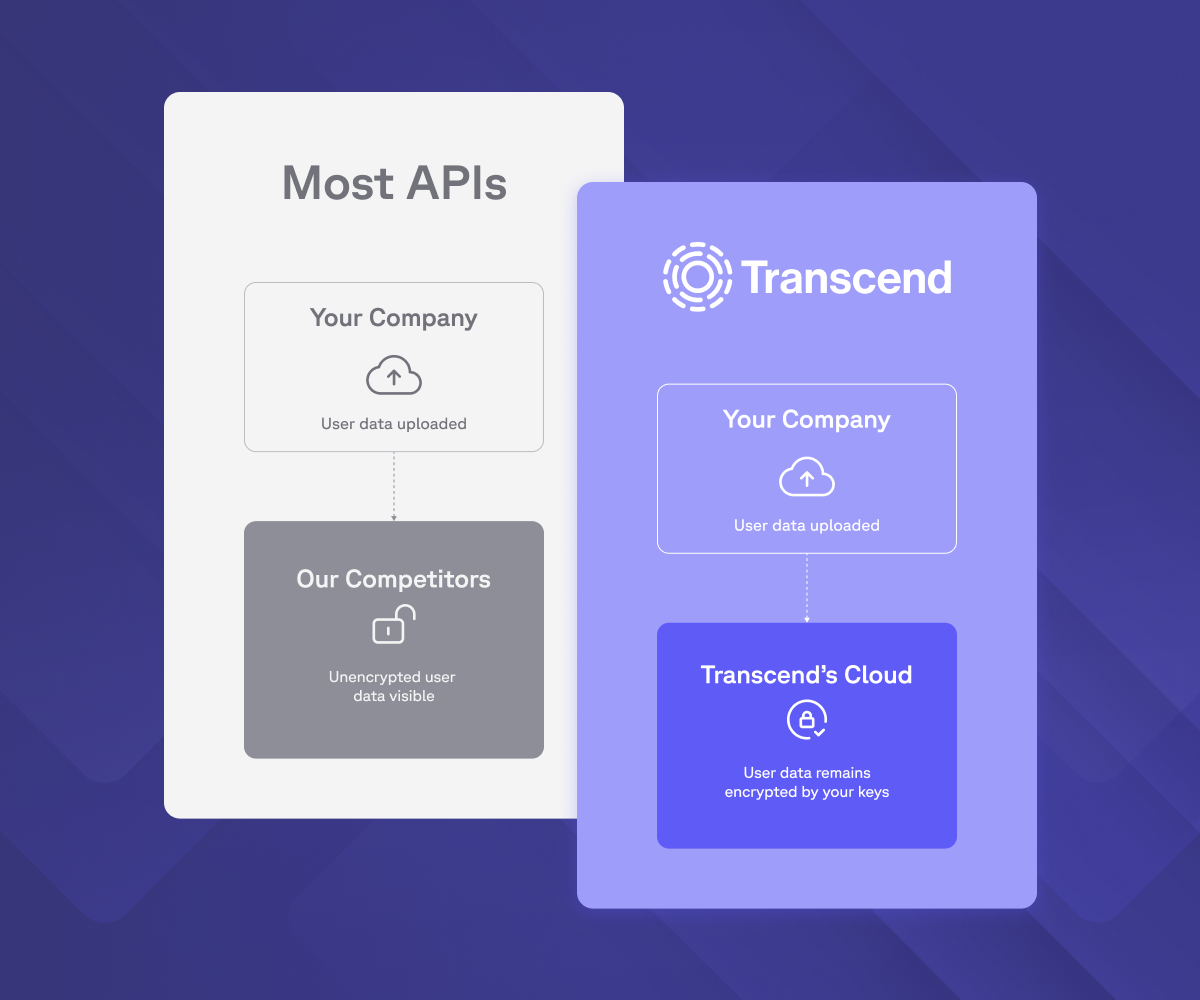
Security-first approach
Every integration runs on zero-trust architecture: isolated execution, private subnets, and credentials that never sit in shared infrastructure. The same Sombra gateway that protects your data protects every connection into it.
Learn more“Customers reported that the integrations were seamless despite the patchwork of data sources Transcend was required to integrate into.”
Ryan O'Leary
Research Director for IDC's Security and Trust Program
Your AI runs on integrations. Ready to govern them?
Every integration feeds the same question: "Can I use this data?" Trusted by Fortune 100 companies to answer it at scale, across every system.
Book a demo
MarketScape Leader

Highest User Adoption

Leader, Privacy UX MQ

Technology Fast 500

World Changing Ideas

Solution of the Year
Most Innovative Companies

Technology of the Year